Add a new show
You’re standing up a new show at your theater — maybe a flagship that runs every weekend, a month-long run, or a one-off guest visit. In SchedgeHog, all three start the same way: you build a show on the Shows tab. A show is a template. The actual performance dates come later, from the Calendar.
That distinction matters: creating a show does not put anything on the calendar. It defines the defaults — venue, eligible ensembles, call time, roles — that get copied onto each performance you schedule from it.
Open the new-show form
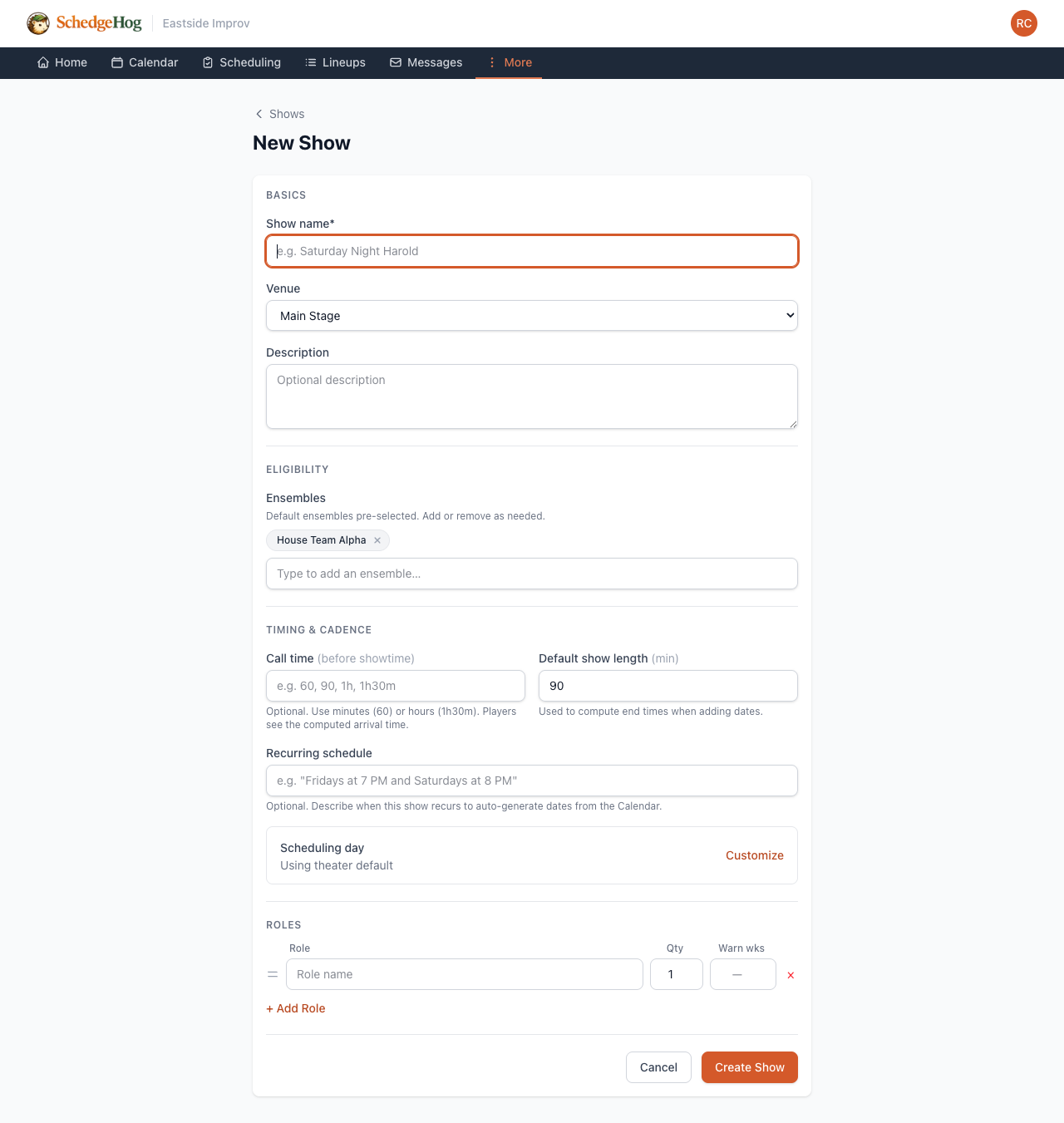
Section titled “Open the new-show form”Go to Shows and click New Show.
Basics
Section titled “Basics”- Show name — what your players and audience will see.
- Venue — the stage where it usually plays. If this is a road show, choose No location (road show) so SchedgeHog tags the dates accordingly.
- Description — optional. A line of context for your players.
Eligibility
Section titled “Eligibility”Add the ensembles whose members are allowed to be cast in this show. If you’ve set up default ensembles under Theater Settings, they appear here pre-selected — keep them, remove them, or add others.
This list controls who can sign up. You can add or remove ensembles per-date later if a specific performance has a different cast pool.
Timing & cadence
Section titled “Timing & cadence”- Call time — how long before the show starts you want players to arrive. Enter minutes (
60,90) or hours (1h,1h30m). Optional, but if you set it, players see a computed arrival time on their lineup. - Default show length (min) — how long the show runs. SchedgeHog uses this to compute end times when you add dates.
- Recurring schedule — describe in plain English when this show happens, e.g. Fridays at 7 PM and Saturdays at 8 PM, or first and third Saturday at 8 PM. Click out of the field and SchedgeHog parses it and previews the next few dates so you can sanity-check that it understood. If the preview is wrong, rephrase. This is what powers the Calendar’s magic-schedule shortcut — when you ask it to fill a month, your shows land on the right dates automatically.
- Scheduling day — leave it on Using theater default unless this show is on a different cadence than the rest of your programming. (For example: you schedule weekly on Wednesdays, but this one show you cast a month ahead.) Click Customize to override.
A role is a slot on the lineup — Host, Player, Announcer, whatever your show calls them. For each role, set:
- Role name
- Qty — how many slots of that role are in the show
- Warn wks — optional. If you don’t want the same person filling this role more often than once every N weeks, put N here. When you cast someone who’s been in the role recently, SchedgeHog warns you. It’s a nudge, not a block.
Drag roles by the handle to reorder them; that order is the order they appear on the lineup. If you set up default roles in Theater Settings, they’re already here — adjust or remove anything that doesn’t apply.
Save it
Section titled “Save it”Click Create Show. The template is saved.
What’s next
Section titled “What’s next”Creating the show doesn’t add any performances to the calendar yet. To start scheduling dates, head to the Calendar — either drop a one-off date for a specific weekend, or generate a month of dates from your recurring schedule.
Per-date overrides
Section titled “Per-date overrides”Don’t try to anticipate every variation when you set up the show. Set the defaults that apply to most performances. For any single performance that’s different — different roles, different time, different eligible ensembles, a different venue for one road-show weekend — you can override those settings on the show date itself without touching the template.