How do I add my shows to my calendar?
If you’d rather see your shows in the calendar you already check every day — Apple, Google, Outlook, or anything else that reads an iCal feed — you can subscribe once and SchedgeHog will keep it in sync. Every show you’re cast in shows up automatically, and disappears if you get pulled.
Subscribe
Section titled “Subscribe”-
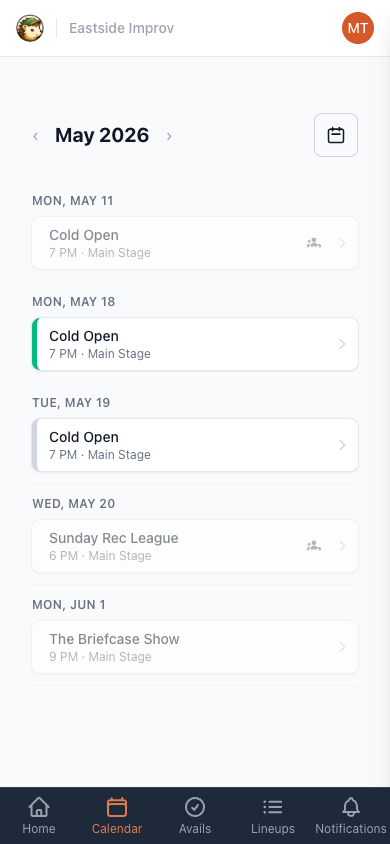
Open the Calendar tab.
-
Tap the calendar icon in the top-right (on desktop it’s labeled Subscribe to calendar).
-
Pick Apple, Google, or Outlook — your calendar app opens and walks you through adding the feed.
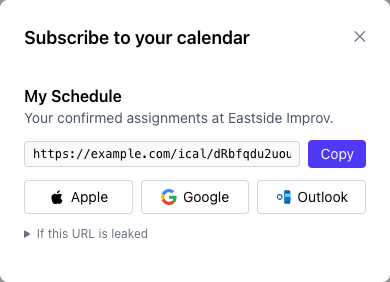
If you use a different calendar app, tap Copy to grab the URL and paste it into your app’s “add calendar by URL” or “subscribe to calendar” option.
That’s it. You only do this once per device.
What ends up on your calendar
Section titled “What ends up on your calendar”Every show you’re cast in — past and future. Each event includes the show name, the stage, your role, and anyone else in the lineup.
Events start at call time, not showtime. If the show is at 7 PM with a 6:30 PM call, the event on your calendar starts at 6:30 — so a glance at your phone tells you when you actually need to be there.
If your shows don’t appear right away
Section titled “If your shows don’t appear right away”Calendar apps decide on their own how often to check for updates — sometimes once an hour, sometimes once a day. A lineup that was just sent might take a little while to show up. If something’s still missing after a day, pull down to refresh the calendar in your app, or remove and re-add the subscription.
Keeping your URL private
Section titled “Keeping your URL private”The subscribe URL is personal to you. Anyone with it can see every show you’re in. Don’t paste it into a shared chat or a public document.
If you ever share it by accident, open the modal again and use If this URL is leaked to generate a new one. The old URL stops working immediately, and you’ll need to resubscribe on each device with the new URL.