Adjusting sub request notifications
When a castmate can’t make a show, SchedgeHog can email you so you have a chance to cover. By default, you’ll get one of these any time someone in a show you could sign up for asks for a sub. If those emails are more noise than help, you can turn them off entirely — or keep them on and trim the ones that wouldn’t be useful.
Find the setting
Section titled “Find the setting”Open the Notifications tab from the nav and look for the Sub requests card.
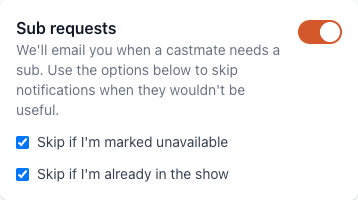
The toggle on the right turns sub request emails on or off. Changes save automatically — there’s no Save button.
Skip the ones that don’t apply to you
Section titled “Skip the ones that don’t apply to you”With sub request emails on, two checkboxes let you cut down on noise:
- Skip if I’m marked unavailable — if you’ve already told SchedgeHog you’re out for that show, you probably can’t sub in either. Leave this on to skip those emails.
- Skip if I’m already in the show — you can’t sub for yourself, so this skips sub requests on shows you’re already cast in.
Both are on by default. Turn one off if you’d rather see those emails anyway — some players like to know what’s going on with their lineup even when they can’t help, or want to keep their unavailable response open in case plans change.
Adjusting from the email itself
Section titled “Adjusting from the email itself”Every sub request email has a link at the bottom to manage your notification preferences. Click it and you’ll land right back on the Notifications page, where you can change which sub requests come through — or turn them off entirely.