Logging in
You got an email from your theater pointing you at SchedgeHog and now you need to get in. Here’s how.
Use the email your theater knows you by
Section titled “Use the email your theater knows you by”The email your theater already uses to reach you — the one on availability asks and lineup emails — is your sign-in email. There’s no separate account to set up.
Sign in with a magic link
Section titled “Sign in with a magic link”This is the default, and it skips passwords entirely.
- Open the SchedgeHog sign-in page.
- On the Magic Link tab, type your email.
- Tap Send sign-in link.
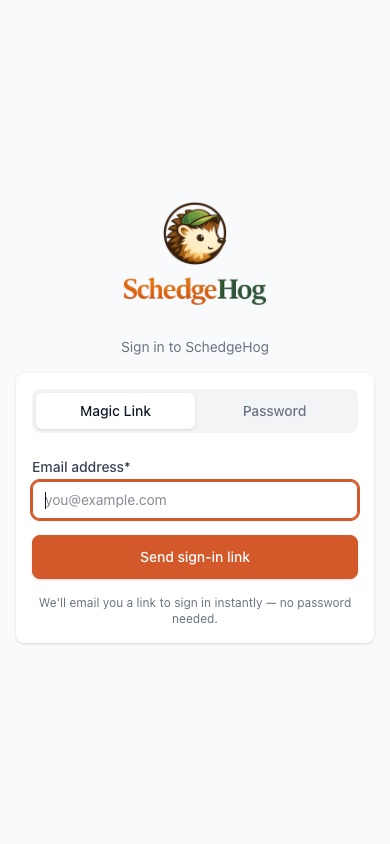
A one-time sign-in link lands in your inbox within a minute. Open it on the phone or laptop you want to be signed in on, tap the link, and you’re in.
If it doesn’t show up, check your spam folder. The link expires after 15 minutes — if it goes stale, send yourself a fresh one.
Stay signed in
Section titled “Stay signed in”Once you’ve used a magic link on a device, SchedgeHog keeps you signed in for about three months. You usually won’t have to do this again on the same phone. If you sign out, clear cookies, or switch devices, you’ll go through the magic link once more.
Optional: set a password
Section titled “Optional: set a password”If you’d rather not wait for an email, you can add a password. It’s never required.
- Sign in with a magic link first.
- Tap your initials at the top right, then My profile.
- Scroll to Change password (optional) and pick one (at least 8 characters).
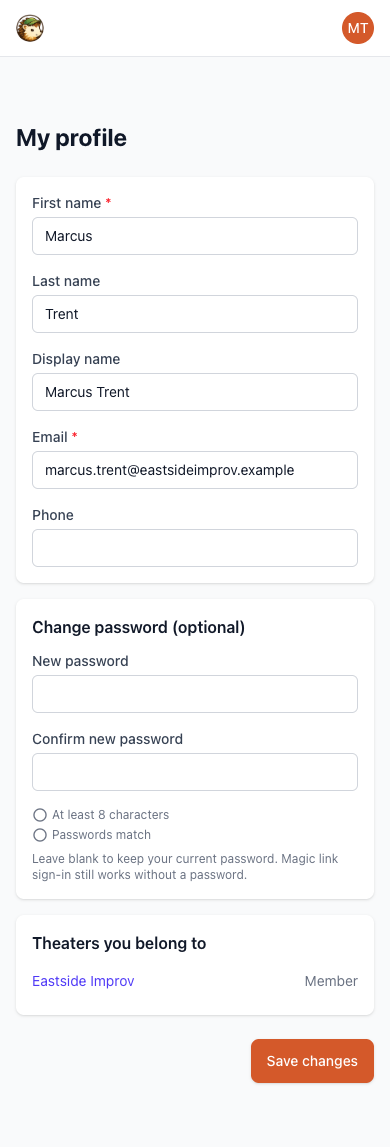
After that, the Password tab on the sign-in page works too. Magic link still works either way — most players never bother setting a password.