Add the app to your home screen
If you check availability or your lineup from your phone, putting SchedgeHog on your home screen turns it into a one-tap shortcut that opens full-screen, just like a regular app. No browser tabs to dig through.
The steps are different on iPhone and Android. Pick yours.
iPhone (Safari)
Section titled “iPhone (Safari)”You have to be in Safari for this — other browsers on iOS don’t offer the install option, and iOS doesn’t have a one-tap install. You’ll go through Safari’s Share menu.
- Open SchedgeHog in Safari and sign in.
- Tap the Share icon at the bottom of the screen (the square with the arrow pointing up).
- Scroll down and tap Add to Home Screen. Depending on your iOS version, you may need to tap More first to find it.
- Confirm the name and tap Add.
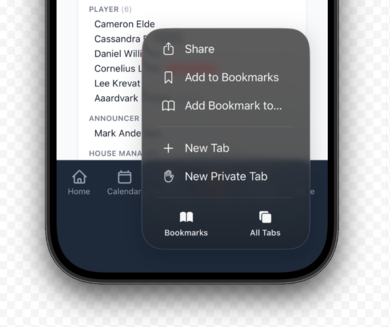
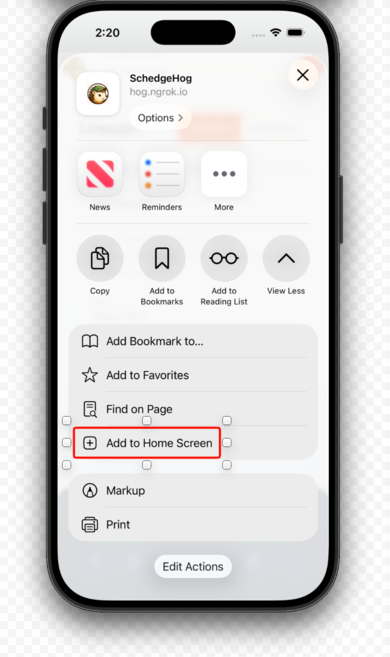
The SchedgeHog icon now sits on your home screen.
Tip: the account menu also has an Install SchedgeHog item on iOS — but it just shows you these same instructions. The actual install still happens through the Share menu above.
Android (Chrome)
Section titled “Android (Chrome)”You have to be in Chrome — other Android browsers vary.
- Open SchedgeHog in Chrome and sign in.
- Open the account menu (top right) and tap Install SchedgeHog.
- Choose Install (not Create shortcut) so it opens full-screen like a real app. A shortcut just reopens Chrome.
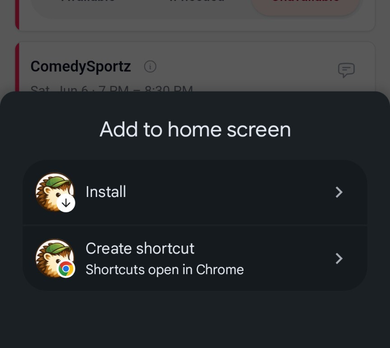
The SchedgeHog icon now sits on your home screen.
If you don’t see Install SchedgeHog in the account menu, you can install from Chrome’s own menu instead: tap the three-dot menu in the top right, tap Add to Home screen, then choose Install.
One thing to know: you need to be online
Section titled “One thing to know: you need to be online”The installed app still needs an internet connection. There’s no offline mode — without a connection you can’t mark availability or see the current lineup, so it would just show you a stale or blank screen. As long as you have signal or Wi-Fi, it works exactly like the website, only faster to get into.